
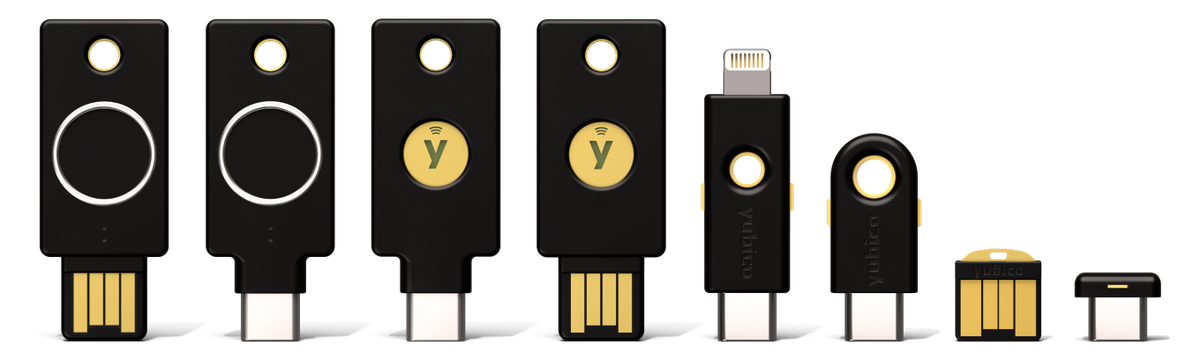
I have had two YubiKeys for years. They are very cool devices. I used to store my keys themselves on the YubiKey, and perhaps I’ll go back to doing that. But 1Password has me covered for now. What I did realise while moving to a new PC is that there is no concise guide to how to set up YubiKey on a recent Ubuntu Linux setup. I am on Ubuntu 24.04, using the Gnome desktop environment (this might be significant) and here’s what I did. This gives me passwordless sudo with a touch of the YubiKey and the ability to use the YubiKey in polkit popups (when permission is requested). If you remove the YubiKey key while that prompt is visible, it will fall back to asking for a password.
Configuration
First, open a terminal and get root (sudo su -). We need to keep this open in case something gets messed up that requires us to go back.
Second, open another terminal and type these commands:
sudo apt update
sudo apt install libpam-u2f -y
mkdir -p ~/.config/Yubico
pamu2fcfg > ~/.config/Yubico/u2f_keys
In the last step, you need to touch the YubiKey when it lights up.
If, at any future point, you want to add another key, use:
pamu2fcfg -n >> ~/.config/Yubico/u2f_keys
Now enter/edit sudo nano /etc/pam.d/sudo. (Note: throughout this guide, I use nano. I love this little simple text editor. For those who don’t know or like it: ctrl+o is save (needs confirmation) and ctrl+x is exit (needs confirmation).)
In the /etc/pam.d/sudo file, add:
auth sufficient pam_u2f.so cue [cue_prompt="Tap the Yubikey to Sudo"]
This needs to go just above the line that reads @include common-auth.
So, my whole /etc/pam.d/sudo file looks like this:
#%PAM-1.0

# Set up user limits from /etc/security/limits.conf.
session    required   pam_limits.so

session    required   pam_env.so readenv=1 user_readenv=0
session    required   pam_env.so readenv=1 envfile=/etc/default/locale user_readenv=0

auth sufficient pam_u2f.so cue [cue_prompt="Tap the Yubikey to Sudo"]

@include common-auth
@include common-account
@include common-session-noninteractive
You can then test this part out. Open a new terminal and type sudo echo test. If you have done everything right and the YubiKey is plugged in, you should be prompted to use it. If you pull the YubiKey out at this point, you should get a password prompt.
The next step is to configure Policykit.
We need to edit /etc/pam.d/polkit-1. This did not exist on my system, but /usr/lib/pam.d/polkit-1 did. So:
sudo cp /usr/lib/pam.d/polkit-1 /etc/pam.d/polkit-1
Then sudo nano /etc/pam.d/polkit-1 and enter the following (or similar, tailored to your needs):
#%PAM-1.0

auth    sufficient    pam_u2f.so cue [cue_prompt=Tap YubiKey to authenticate]

@include common-auth
@include common-account
@include common-password
session       required   pam_env.so readenv=1 user_readenv=0
session       required   pam_env.so readenv=1 envfile=/etc/default/locale user_readenv=0
@include common-session-noninteractive
The important point is that the auth sufficient YubiKey line needs to be above common-auth. Your file may differ; just enter the first line.
When you have saved this file, you can test its working by issuing the command pkexec id in a new terminal. This should popup a prompt asking you to press your YubiKey.
Debugging and Troubleshooting
If something goes wrong, you need to debug what is happening within your PolicyKit environment.
First, enable debugging in /etc/pam.d/polkit-1:
Change the auth line to read:
auth sufficient pam_u2f.so cue debug debug_file=syslog [cue_prompt=Tap YubiKey to authenticate]
In your root terminal from step 1, run:
journalctl -f | grep -Ei 'pam_u2f|pkexec|polkit'
Then, in another terminal, run pkexec id. This should then give you output that tells you if something is going wrong. I had a case where I was earlier specifying an incorrect file path on the auth line. But now we use the defaults and we generated these earlier in the right places, so I don’t have any problems here. In any case, this debug log should help you if you are running into troubles.